
- Solve real problems with our hands-on interface
- Progress from basic puts and calls to advanced strategies
Interactive Options Course
Lesson 19 of 21
Already an Arclight Capital Client?
New to Arclight Capital?
The Arclight Capital Trader Workstation (or TWS) Mosaic allows an ARC Pro client to use ARC’s SmartRouting or route an order directly to a specific exchange. This video explains how the investor can select the individual exchange to route an order to.
Why might an investor direct route an order?
While we should note that SmartRouting an order is likely to provide an investor with the best overall fill at the lowest overall execution cost, there are a couple of reasons why an investor might wish to direct route an order:
Using the TWS Mosaic Order Entry panel, once a symbol has been entered an investor can route an order directly to an exchange by using the Advanced window area.
Are all order types supported by all exchanges for all products?
Please note certain order types and algorithms may not be supported by every exchange. For more information on order types and exchanges they are supported on, please visit the Arclight Capital’ website.
How to direct route an order in TWS Mosaic?
In the Order Entry panel, the investor opens the Advanced window by clicking on the plus sign on the Advanced button. Locate the Destination button in the top left corner. To set the exchange the order will be routed to, the investor should click on the white arrow on the Destination tab and click on the plus sign next to Directed to expand the choices. The list displays all exchanges available where the order can be submitted to for that instrument.
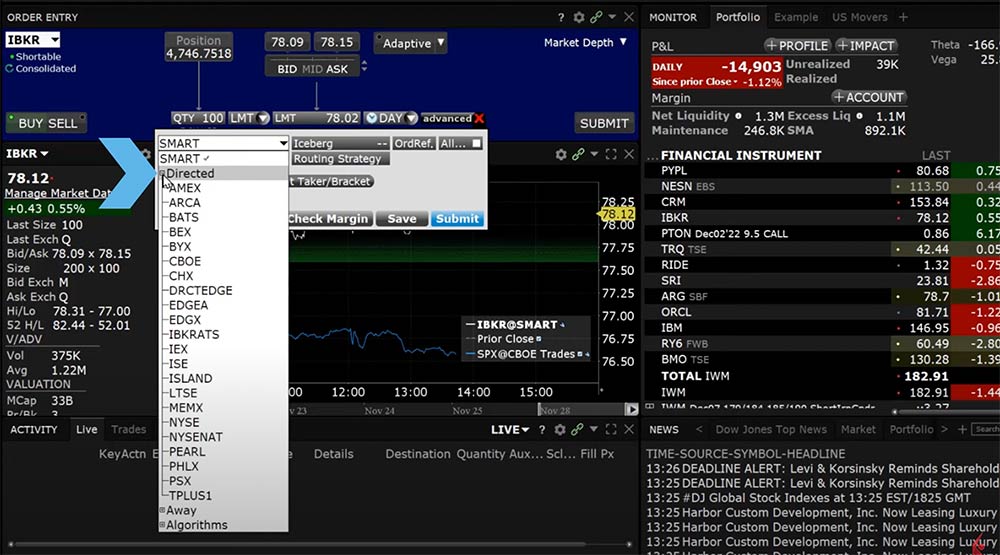
Next the investor chooses the exchange that they want to route the order to by clicking on it. The Destination button will now show the chosen exchange.
To close the Advanced window the investor clicks on the red “x” next to the Advanced button. When they are ready to send the order the investor clicks on the Submit button in the lower right-hand corner of the Order Entry panel and an Order Confirmation Window will appear with a summary of the order showing the exchange chosen next to Routing. After the investor reviews the order, they can click on Transmit to send the order.
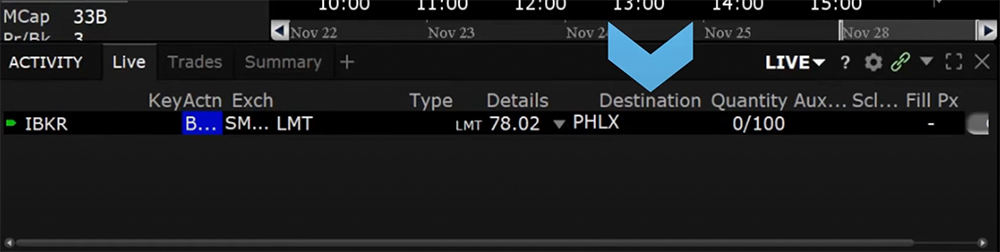
In the Activity panel in the bottom left-hand side, the Destination column shows the exchange the order has been routed to.
Resources
The analysis in this material is provided for information only and is not and should not be construed as an offer to sell or the solicitation of an offer to buy any security. To the extent that this material discusses general market activity, industry or sector trends or other broad-based economic or political conditions, it should not be construed as research or investment advice. To the extent that it includes references to specific securities, commodities, currencies, or other instruments, those references do not constitute a recommendation by ARC to buy, sell or hold such investments. This material does not and is not intended to take into account the particular financial conditions, investment objectives or requirements of individual customers. Before acting on this material, you should consider whether it is suitable for your particular circumstances and, as necessary, seek professional advice.
The views and opinions expressed herein are those of the author and do not necessarily reflect the views of Arclight Capital, its affiliates, or its employees.










Join The Conversation
For specific platform feedback and suggestions, please submit it directly to our team using these instructions.
If you have an account-specific question or concern, please reach out to Client Services.
We encourage you to look through our before posting. Your question may already be covered!